I Help Businesses Scale with Data Driven Marketing Strategies
Welcome to my world
Hi, I’m Jone Lee a Developer.Professional Coder.UI/UX Designer.
I use animation as a third dimension by which to simplify experiences and kuiding thro each and every interaction. I’m not adding motion just to spruce things up, but doing it in ways that.
Maecenas finibus nec sem ut imperdiet. Ut tincidunt est ac dolor aliquam
sodales. Phasellus sed mauris hendrerit, laoreet sem in, lobortis mauris
hendrerit ante. Ut tincidunt est ac dolor aliquam sodales phasellus smauris test
Rainbow-Themes
Cara Delevingne
Chief Operating Officer
Travel Mobile App Design.
via Upwork - Mar 4, 2015 - Aug 30, 2021 test
Maecenas finibus nec sem ut imperdiet. Ut tincidunt est ac dolor aliquam
sodales. Phasellus sed mauris hendrerit, laoreet sem in, lobortis mauris
hendrerit ante. Ut tincidunt est ac dolor aliquam sodales phasellus smauris test
Bound - Trolola
Jone Duone Joe
Operating Officer
Web App Development
Upwork - Mar 4, 2016 - Aug 30, 2021
Maecenas finibus nec sem ut imperdiet. Ut tincidunt est ac dolor aliquam
sodales. Phasellus sed mauris hendrerit, laoreet sem in, lobortis mauris
hendrerit ante. Ut tincidunt est ac dolor aliquam sodales phasellus smauris
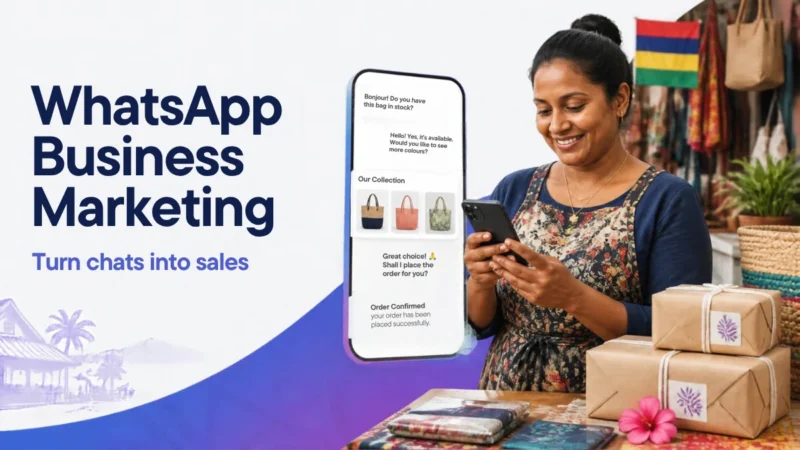
WhatsApp Business Marketing: Turn Chats into Sales
Here’s a question I ask every Mauritian business owner I work with: where do your sales actually close?
Almost every time, the answer is the same. Not on the website. Not in the shop. On WhatsApp.
In my article on the digitalised bazaar, I showed how sellers take buyers from a TikTok live straight into WhatsApp to close the deal by hand. It works. But it’s also chaos: missed messages, forgotten follow-ups and no idea which post or ad brought in the sale.
That’s where WhatsApp Business marketing done properly changes things. Same chats, same customers, but with structure, automation and numbers you can trust. Here’s how to set it up, step by step.
Key takeaways
The WhatsApp Business app is free and built for small businesses. The WhatsApp Business Platform is for medium and large businesses that need scale.
A complete profile, a tidy catalogue, quick replies and labels turn a messy inbox into a sales pipeline.
Ads that click to WhatsApp on Facebook and Instagram send people straight into a chat with you.
You need clear opt-in before sending marketing messages, and you must honour every opt-out.
Track every chat from first message to sale, or you’ll never know which marketing pays.
WhatsApp Business app vs WhatsApp Business Platform: which do you need?
The WhatsApp Business app
According to the official WhatsApp for Business FAQ, the app “is for small businesses to communicate with customers from a single device.” It’s free to use, with limited customisation and integration with other tools.
If you’re a boutique, a caterer or a live seller handling your own chats, start here. No technical setup needed.
The WhatsApp Business Platform (API)
The same FAQ says the Platform “enables medium and large businesses to chat with customers at scale through programmatic access to WhatsApp.” You either sign up directly as a developer or work with an approved Business Solution Provider, who may charge for their own services.
My rule of thumb: if one or two people answer every chat, use the app. If you need several agents, automated flows, order updates from your systems or proper conversion tracking, move to the Platform.
It doesn’t have to be all or nothing. Meta’s coexistence documentation explains that app users can connect their existing number to the Cloud API through a partner and keep chatting in the app. Some features, such as broadcast lists, become read-only, so check the details first.
Set up WhatsApp Business so it sells for you
Most businesses add a logo and stop there. Here’s what I recommend instead.
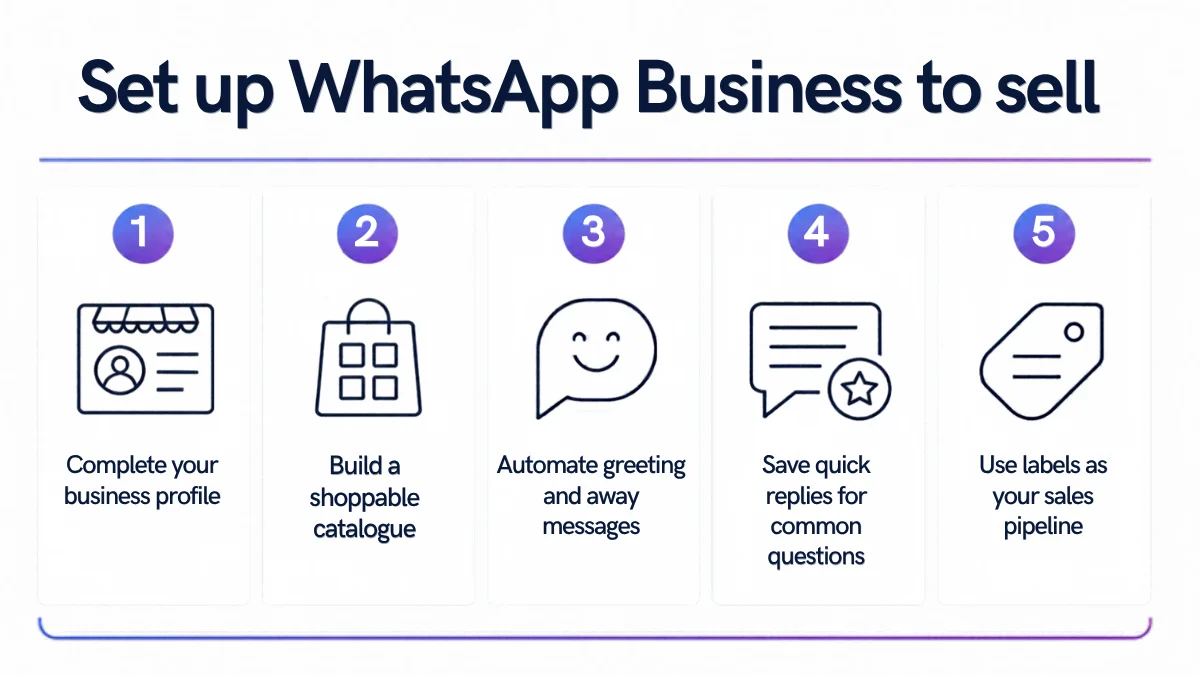
1. Complete your business profile
WhatsApp calls the business profile a “virtual storefront” for your logo, description, hours and website (WhatsApp Business app features).
Fill in every field: what you sell, where you deliver and how people can pay.
2. Build a catalogue people can shop
The catalogue is a mobile storefront inside WhatsApp. You can group items into collections, share catalogue links on WhatsApp, Facebook and Instagram, and let customers send you a cart in a single message (WhatsApp).
WhatsApp’s own guidance is to give each item a clear name, consistent photos, a short description, a price and details such as sizes or lead times.
For live sellers, that means one link instead of typing the same price over and over.
3. Automate greeting and away messages
A greeting message welcomes new customers when they first message you. An away message replies automatically outside your business hours (WhatsApp).
Use the greeting to share your catalogue link. Use the away message to say when you’ll be back.
4. Save quick replies for common questions
Quick replies are saved shortcuts you send in a few taps. WhatsApp suggests them for pricing, payment methods, pickup details, return policies and out-of-stock updates (WhatsApp).
Their recommended structure: a personal greeting, one direct answer, a next step and an optional catalogue link. I’d add one thing. End with a question that moves the sale forward, such as “Which size would you like?”
5. Use labels as your sales pipeline
Labels let you sort and filter conversations (WhatsApp). I think they’re the most underrated feature in the app. Create labels that match your sales stages:
New lead: asked a question, no order yet
Quote sent: price or catalogue shared
Awaiting payment: order agreed, not paid
Paid: ready to deliver
Repeat customer: bought before
Now filter “Quote sent” every evening and follow up. That one habit recovers sales most businesses never knew they lost.
Five setup steps that turn WhatsApp Business into a simple sales system.
Drive chats with ads that click to WhatsApp
Ads that click to WhatsApp “send people that click on your ads directly into conversations with your business in WhatsApp,” according to Meta’s developer documentation. They run on Facebook and Instagram, with image, video, carousel and slideshow formats.
When someone taps, a chat opens with a pre-filled message. You can customise it, add an automated greeting with buttons and offer up to three icebreaker questions (Meta).
Three tips from running these campaigns:
Match the ad to the first reply. If the ad promotes a product, your greeting should show that product and its price.
Use a different pre-filled message per campaign. “Hi, I saw the Diwali offer” tells you exactly which ad brought the chat in.
Staff the inbox. Paying for chats you answer hours later is the fastest way to waste budget.
On the Platform, there’s a cost bonus too. If someone messages you from one of these ads and you reply within 24 hours, Meta opens a 72-hour free entry point window in which messages are free (Meta pricing documentation).
WhatsApp Business marketing messages: opt-in, consent and no spam
The WhatsApp Business Messaging Policy says you may only contact people who gave you their number and agreed to receive your messages. You must also respect every request to block or opt out, whether it comes on or off WhatsApp.
What a valid opt-in looks like
According to Meta’s opt-in guidance, your opt-in must state that the person is agreeing to receive messages over WhatsApp, and it must name your business. You should also explain how to opt out of specific types of message.
You can collect opt-in on your website, in a chat, by SMS, by phone or on paper in your shop. Meta recommends separate opt-in for different types, such as order updates and promotions.
How marketing messages work on the Platform
A 24-hour customer service window opens when a customer messages you. Outside it, you can only send template messages (Meta). Templates fall into marketing, utility and authentication categories, and each must pass review before you can send it (Meta).
On pricing: since 1 July 2025, Meta charges per message, with rates that vary by message category and the recipient’s country (Meta). Replies inside an open service window are free, but marketing templates are always charged, so check the current rate card for your markets.
Broadcast without becoming spam
In the app, Business Broadcasts let you send private one-to-one messages to many people at once, with scheduling and insights, for eligible users in select countries (WhatsApp).
Whichever tool you use, the policy is blunt: people should expect your messages, and you must not “spam, or surprise people” (WhatsApp). Blocks and reports can limit how many messages you can send.
My best practice:
Only message people who opted in, and record when and how.
Segment by label, so repeat customers get loyalty offers and new leads get introductions.
Send less often, but make every message worth opening.
Offer a simple way out, such as “Reply STOP to stop offers,” and honour it immediately.
Consent is also the start of your own customer data, which is why I pair it with a zero-party data strategy.
How to measure WhatsApp Business marketing results
If you can’t connect a chat to a sale, you can’t tell which marketing works.
1. On the app: labels plus a simple log
Use your pipeline labels and keep a basic sheet: date, source, product, value and status. Ask every new lead how they found you, and use a unique pre-filled message, QR code or short link per campaign. WhatsApp lists QR codes and short links as free ways to start chats (WhatsApp).
It’s manual, but you’ll finally see which sources bring orders.
2. On the Platform: send conversions back to Meta
The Conversions API for Business Messaging lets you report events that happen in the chat, such as LeadSubmitted, QualifiedLead and Purchase, back to Meta. Each chat from a click-to-WhatsApp ad carries a click ID that ties it to the ad.
Meta also offers purchase optimisation for these ads, so the algorithm looks for buyers, not just people who say hello.
Frequently asked questions
What is WhatsApp Business marketing?
It’s using WhatsApp Business tools, from your catalogue and labels to ads that click to WhatsApp and opted-in messages, to win leads, close sales and track results from chat to sale.
Is the WhatsApp Business app free?
Yes. The app is free. The Platform has no access fee, but Meta charges per message depending on type and country, and partners may add fees.
Can I send promotional messages to anyone on WhatsApp?
No. WhatsApp’s Business Messaging Policy only allows you to message people who gave you their number and agreed to hear from you, and you must honour every opt-out.
Do ads that click to WhatsApp work with the free app?
Yes. WhatsApp lists them among the paid options for app users. For deeper tracking, you’ll need the Platform.
How do I track sales that close on WhatsApp?
On the app, label each sales stage and log every lead’s source and value. On the Platform, send purchase events to Meta with the Conversions API for Business Messaging.
The bottom line
Your customers already want to buy on WhatsApp. The question is whether you’re running it like a stall or like a business.
Good WhatsApp Business marketing comes down to three things: a setup that sells, permission you can prove and numbers you can trust. Get those right and every chat becomes a step towards a sale.
Want WhatsApp to bring you sales, not just messages?
I help businesses in Mauritius and beyond run ads that click to WhatsApp, automate replies and follow-ups, and track every chat through to the sale. Tell me about your project and let’s build it properly.
Google Business Profile Setup and Optimisation for Small Businesses
Someone in Grand Baie types “seafood restaurant near me” into Google. Three businesses appear on the map. They pick one, tap “Directions” and they’re on their way.
If your restaurant isn’t one of those three, you never even had a chance.
That’s the power of a Google Business Profile for small business owners. It’s free, it sits on Google Search and Maps, and it’s often the first thing customers see about you. Sometimes instead of your website.
Yet I still see Mauritian businesses with unclaimed listings, wrong hours and unanswered reviews.
In this guide, I’ll show you how to set up Google Business Profile step by step, how to optimise it, which mistakes to avoid, and a checklist you can work through this week.
Key takeaways
Your profile only appears to customers after you verify it, so verification is step one, not an afterthought.
Use your real-world business name. Adding keywords, taglines or locations to the name breaks Google’s guidelines.
Pick the most specific primary category you can. Categories affect your local ranking.
Ask every happy customer for a review, reply to them, and never offer incentives for reviews.
Google says you can’t pay for a better local ranking. Complete, accurate, active profiles win.
Why a Google Business Profile for small business owners matters
You can’t move your salon closer to every customer in Rose-Hill. But you can control relevance and influence prominence through reviews and ratings.
Google is also direct on one point: there’s no way to pay for a better local ranking. It’s about doing the basics better than the business down the road.
There’s a newer reason too. AI search tools draw on local business data when they answer questions like “best salon in Rose-Hill”. A complete, consistent profile gives them accurate facts to work with. I cover that shift in my guide to generative engine optimisation (GEO).
How to set up Google Business Profile: step by step
1. Create or claim your profile
Sign in to a Google Account (Google suggests using your business email domain if you’re creating a new one), then go to the Business Profile create page and type your business name. Google’s setup guide walks you through category, location, service area, phone and website.
If your business already shows on Maps, you’ll be asked to claim it rather than create a new one. If someone else has already verified it, such as a former employee or agency, you can request ownership. According to Google, the current owner has 3 days to respond, after which you may be able to claim it.
Note that profiles are for businesses with in-person customer contact. Online-only businesses aren’t eligible.
2. Verify your business
Google states that customers can only find your profile after you complete verification. The available methods can include phone or text, email, a live video call, a video recording or a postcard. Google chooses which ones you’re offered, and you can’t change that.
A few practical rules from Google’s help page:
Postcard codes usually arrive within 14 days and expire after 30 days.
While you wait, don’t change your name, address or category, and don’t request a new code.
Reviews of verification can take up to 5 business days.
Never share your code. Google says it will never ask you for it.
3. Use your real business name, nothing more
This is where many small businesses go wrong. Google’s guidelines for representing your business say your name should reflect your real-world name, the one on your signage and stationery.
Taglines, phone numbers, URLs, opening hours and location details aren’t allowed. So if a hypothetical restaurant is called “Lagoon Grill”, that’s the name. “Lagoon Grill Best Seafood Restaurant Grand Baie Mauritius” is keyword stuffing, and it puts your profile at risk.
4. Choose your primary and secondary categories
Your primary category should be the most specific option that describes what your business is. Google’s own example: choose “Nail salon” rather than “Salon”. Google also confirms that the categories you select affect your local ranking.
Additional categories are for real departments. A Rose-Hill beauty salon might choose “Beauty salon” as primary and add “Nail salon” if it genuinely runs one. Don’t add a category for every product.
5. Set your address or service area
If customers visit you, add your exact address. P.O. boxes and virtual offices aren’t eligible.
If you travel to customers, like a mobile hairdresser, hide your address and set a service area instead. You can add up to 20 areas by city or postal code, and Google suggests staying within about 2 hours’ drive of your base. Hybrid businesses can show both.
6. Add accurate hours
Enter your regular customer-facing hours, then use special hours for public holidays. In Mauritius, that saves a lot of customers from turning up to a closed door.
7. Write your description and attributes
Your business description can be up to 750 characters. Google asks you to leave out URLs and HTML and to focus on the business itself, not promotions or prices.
Then add attributes such as Wi-Fi or outdoor seating. Google notes that some attributes may help you appear in searches for places that have them.
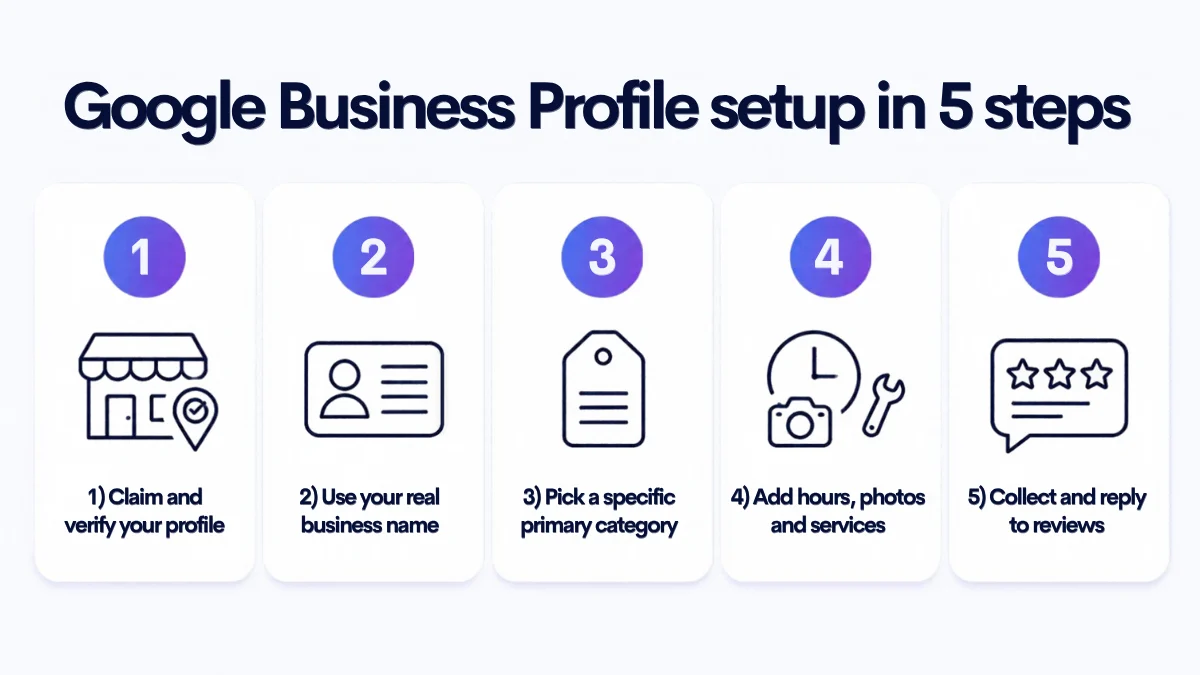
The core steps to set up and optimise a Google Business Profile for a small business.
Google Business Profile optimisation: making your profile work
1. Add real photos and videos
Google recommends a logo, a cover photo and business photos, including an exterior shot so people recognise you on arrival. Its photo and video guidelines ask for JPG or PNG files between 10 KB and 5 MB, ideally 720 px by 720 px, and videos up to 30 seconds long and 75 MB.
Keep them real. Google advises against heavy filters. Show the actual sunset terrace, the actual stylist at work, the actual plate.
2. List your products and services
Use Edit services to pick from Google’s suggestions or add custom services with a short description. A Rose-Hill salon could list “Keratin treatment”, “Bridal makeup” and “Gel manicure”. Keep custom service names free of phone numbers and prices.
3. Publish posts and updates
Posts come in three types: updates, offers and events. A restaurant can post a live music night or a weekend special. Google archives posts older than 6 months unless you set a date range, so a stale profile looks exactly that: stale.
My advice: plan one post a week. It keeps your profile visibly alive.
4. Collect reviews the right way
Google’s review tips suggest sharing a link or QR code with customers. Put the QR code on the bill folder, the salon mirror or your WhatsApp follow-up message.
What you can’t do matters just as much. Google’s contribution policy prohibits offering discounts or free services for reviews, asking only happy customers (review gating), and reviews from staff or family because of conflict of interest.
5. Reply to every review
Google advises short, specific replies that use the reviewer’s name, sent promptly. For negative reviews, acknowledge genuine mistakes, avoid personal attacks, and move complex issues to phone or email.
6. Check how customers can message you
The old built-in chat feature is gone. Google confirms that chat ended on 31 July 2024. For eligible accounts, customers can now contact you from your profile through text messages or WhatsApp. If that option shows in your dashboard, turn it on, then make sure someone actually answers.
7. Use performance insights
Your Performance page shows views, the search terms people used to find you, direction requests, calls, website clicks, messages and bookings. Check it monthly.
If people search “nail salon Rose-Hill” but you never mention nails, you’ve found a gap. To connect those clicks to real sales on your website, you’ll want proper tracking and first-party data in place.
Common Google Business Profile mistakes to avoid
Breaking the guidelines and getting suspended. Google says it may suspend profiles that don’t follow its guidelines. If it happens, don’t create a new profile. Fix the issue, gather evidence such as business registration and utility bills, and appeal once, carefully.
Duplicate listings. Google allows only one profile per business. If you move premises, update your existing address rather than creating a new profile, and don’t create separate profiles for each service.
Fake or incentivised reviews. Google removes them, and they damage trust with real customers who can often spot them.
Inconsistent name, address and phone. Keep them identical on your website, Facebook page and Google profile.
Google Business Profile for small business: optimisation checklist
Profile claimed and verified
Real-world business name, no extra keywords
Specific primary category, a few relevant secondary ones
Correct address or service area
Regular and public holiday hours up to date
Description written, attributes ticked
Logo, cover, exterior and interior photos added
Products or services listed
One post a week
Review QR code in use, every review answered
Name, address and phone identical across the web
Performance insights checked monthly
Frequently asked questions
Is a Google Business Profile for small business owners free?
Yes. Creating and managing a profile is free, and Google states that you can’t pay for a better local ranking.
How long does Google Business Profile verification take?
It depends on the method Google offers you. According to Google, verification reviews can take up to 5 business days, and postcard codes usually arrive within 14 days.
Can I add keywords to my business name on Google?
No. Google’s guidelines say your name should match your real-world business name. Adding taglines, locations or service keywords isn’t permitted and can lead to suspension.
Can I run a profile if I don’t have a shop?
Yes, if you serve customers in person. Service-area businesses hide their address and list up to 20 service areas instead. Online-only businesses aren’t eligible.
Can I offer a discount in exchange for a Google review?
No. Google prohibits incentives such as discounts, free products or payments in exchange for reviews. You can, and should, ask every genuine customer for honest feedback.
The bottom line
A Google Business Profile for small business owners is the closest thing to a free shop window on the busiest street in town.
Set it up honestly, keep it complete, and show up every week with photos, posts and replies. The businesses that win local search in Mauritius won’t be the biggest. They’ll be the most consistent.
Want more customers from local search?
I help businesses in Mauritius and beyond get found locally, from Google Business Profile and local SEO to ads and tracking that show what’s really driving calls and visits. Tell me about your project and let’s make your business the one people choose.
How to Use ChatGPT for Marketing: 20 Prompts That Work
Most people try ChatGPT once, type “write me a Facebook post”, get something bland and decide it’s overrated.
The tool wasn’t the problem. The prompt was.
When I train marketing teams, I see it every time: swap a vague one-liner for a prompt with context and a clear task, and the output goes from generic to usable.
ChatGPT for marketing works best when you treat it like a sharp junior assistant. Brief it properly and it saves you hours. Brief it badly and you’ll spend longer fixing its work.
Below are 20 copy-ready prompts, grouped by the jobs marketers do every week. Swap the details in square brackets for your own and start testing.
Key takeaways
Good prompts give ChatGPT a role, context, a clear task, a format and examples. Vague prompts get vague answers.
The 20 prompts below cover ad copy, social media, email, SEO briefs, customer research, campaign ideas and reporting.
Treat every output as a first draft. ChatGPT can sound confident and still be wrong, so fact-check before you publish.
Feed it your brand voice so the copy sounds like you, not like everyone else using the same tool.
Never paste confidential information or customer personal data into a prompt.
How to write better prompts for ChatGPT
Before the prompts, a quick framework. OpenAI’s own prompt engineering guidance says your prompts should be clear, specific and give the model enough context to understand what you’re asking. It also recommends using descriptive words to set the tone, such as formal, friendly or humorous.
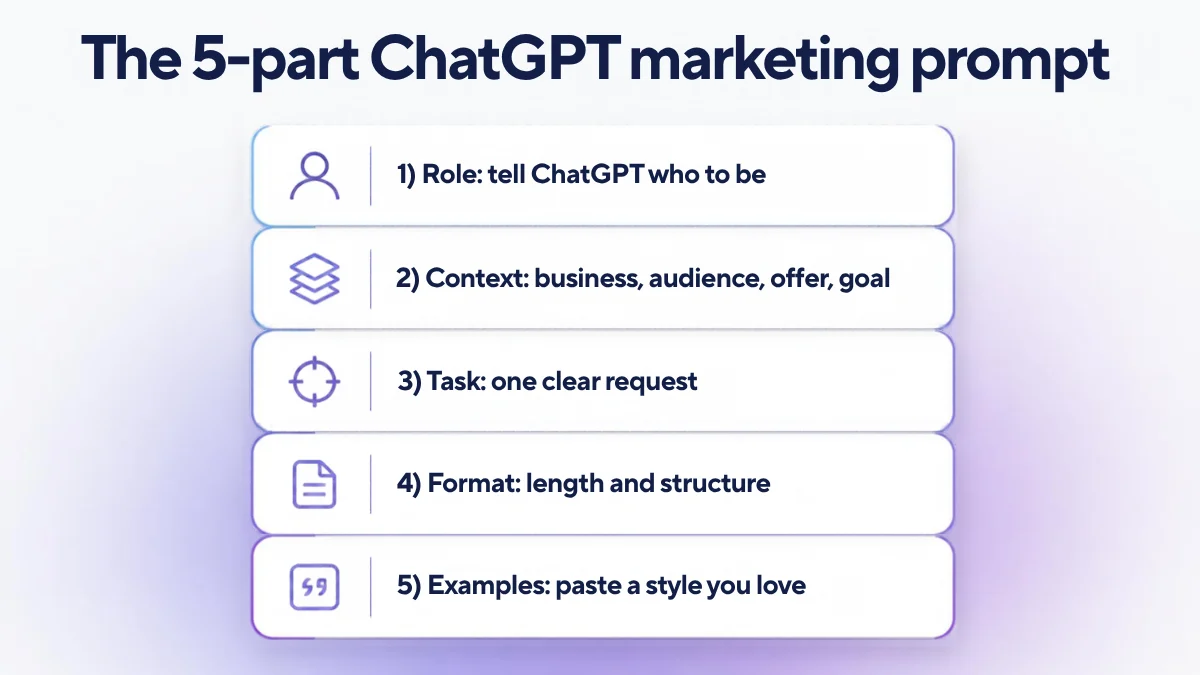
I teach a simple five-part structure that puts this into practice:
Role. Tell ChatGPT who to be: “You are a senior copywriter for a Mauritian retail brand.”
Context. Describe your business, audience, offer and goal.
Task. Say exactly what you want, in one clear sentence.
Format. Specify length and structure: “5 options as a numbered list.”
Examples. Paste a post you love so it can match the style.
The five parts of a strong ChatGPT marketing prompt: role, context, task, format and examples.
Then iterate. OpenAI describes prompting as iterative: review the answer, then adjust the wording, add context or simplify the request.
20 ChatGPT for marketing prompts that work
Each prompt follows that structure in compact form.
1. Ad copy
Prompt 1: Ad variations. “You are a performance copywriter. Write 5 Facebook ad primary texts for [business], a [type of business] in [location], promoting [offer] to [audience]. Each under 125 characters, each with a different angle.” Use it when a tired ad needs fresh variations to test.
Prompt 2: Search ad headlines. “Write 15 Google Search ad headlines of 30 characters or fewer for [product] targeting people searching ‘[keyword]’. Include the keyword in at least 5.” Use it when building a new search campaign.
Prompt 3: Offer angle finder. “Here is my offer: [describe offer]. List 10 reasons [audience] might buy it, ranked by persuasiveness, with a one-line hook for each.” Use it when your ads all sound the same.
2. Social media posts
Prompt 4: Weekly content plan. “You are the social media manager for a café in Port Louis that serves office workers at lunchtime. Create a 7-day Instagram plan with one post idea, a caption under 80 words and a suggested visual per day.” Use it on a Monday when you have no plan.
Prompt 5: Brand voice rewrite. “Here are three posts that represent our brand voice: [paste posts]. Describe this voice in 5 bullet points, then rewrite the following caption in the same voice: [paste caption].” Use it when your copy sounds generic and you want it to sound like you.
Prompt 6: Hook generator. “Write 10 opening lines for a short video about [topic] aimed at [audience]. Each under 12 words, designed to stop the scroll.” Use it before filming Reels or TikToks.
3. Email marketing
Prompt 7: Subject lines. “Write 10 email subject lines for a [campaign type] from a boutique in Curepipe announcing [offer]. Mix curiosity, benefit and urgency, each under 50 characters.” Use it when open rates are slipping.
Prompt 8: Welcome sequence. “Plan a 3-email welcome sequence for new subscribers to [business]. For each email, give the goal, subject line, a 120-word draft and one call to action.” Use it when you’re setting up email automation for the first time.
Prompt 9: Win-back email. “Write a friendly, short email to customers who haven’t bought from [business] in 6 months. Remind them of [key benefit] and include [incentive].” Use it to reactivate past customers before paying for new ones.
4. SEO and blog briefs
Prompt 10: Blog brief. “You are an SEO content strategist. Create a blog brief for the keyword ‘[keyword]’ aimed at [audience]. Include search intent, a title, H2 and H3 outline and questions to answer.” Use it before writing or commissioning an article.
Prompt 11: Topic clusters. “My business is [business] serving [audience] in [location]. Suggest 5 topic clusters, each with one main and 4 supporting articles, based on questions my customers ask.” Use it when planning a quarter of content.
Prompt 12: Meta descriptions. “Write 3 meta descriptions between 120 and 155 characters for a page about [topic]. Include the phrase ‘[keyword]’ naturally and end with a reason to click.” Use it when cleaning up pages with missing or weak descriptions.
5. Customer research
Prompt 13: Persona draft. “Based on this description of my customers: [describe], create 3 personas with goals, frustrations, objections and the words they’d use.” Use it as a starting point, then check it against real customer conversations.
Prompt 14: Review analysis. “Here are anonymised customer reviews with names removed: [paste reviews]. Group them into themes and list the top 3 likes and top 3 complaints.” Use it when you have lots of feedback and little time.
Prompt 15: Objection handling. “List the 10 most common objections a [audience] might have before buying [product], with a short, honest response to each.” Use it when building an FAQ page or briefing sales.
6. Campaign ideas
Prompt 16: Seasonal campaigns. “Suggest 5 campaign ideas for [business] in Mauritius linked to [season, holiday or local event]. For each, give a name, core message, main channel and success measure.” Use it when a key date is coming and you want more than a discount.
Prompt 17: Campaign brief. “Turn this idea into a one-page campaign brief: [idea]. Include objective, audience, key message, channels, content list, timeline and KPIs.” Use it when you need to align your team or agency quickly.
7. Reporting and analysis
Prompt 18: Plain-English report. “Here is last month’s campaign data with no customer details: [paste summary table]. Summarise it for a business owner in 5 plain-English bullets, ending with one recommended action.” Use it when explaining results to someone who doesn’t live in Ads Manager.
Prompt 19: Spot the problem. “Compare these two periods of ad results: [paste figures]. Give the 3 most likely reasons performance changed and what to check first for each.” Use it when results drop.
Prompt 20: Test plan. “Based on these results: [paste summary], suggest 5 A/B tests for next month, ranked by impact and ease, each with a hypothesis.” Use it to turn a report into action.
Getting better ChatGPT for marketing copy: keep your brand voice
If everyone uses the same prompts, everyone gets the same copy. The fix is to feed ChatGPT your raw material: posts that performed, the words your customers use, the phrases you’d never say. Prompt 5 is the fastest start, so save the voice description it gives you and reuse it.
Then edit like a human. Add a real detail, a local reference or an opinion only you would have. I go deeper on this in my guide to human-first content.
The limits: what ChatGPT can’t do for you
ChatGPT is a brilliant drafting partner. It is not a source of truth or a safe place for sensitive data.
1. Fact-check everything
OpenAI is open about this. Its help page on whether ChatGPT tells the truth warns that it can produce incorrect or misleading answers, including invented quotes or studies, and that it might sound confident even when it’s wrong. OpenAI recommends treating outputs as a first draft and verifying important information. For marketing, check every statistic, claim, price and date before it goes live.
2. Protect confidential and customer data
Never paste customer names, phone numbers, emails or confidential business information into a prompt. Anonymise first, as in Prompts 14 and 18.
Check your settings too. According to OpenAI’s Data Controls FAQ, you can turn off the “Improve the model for everyone” setting so your new conversations aren’t used to train its models. Temporary chats aren’t used for training either, though they may be kept for up to 30 days for safety purposes.
3. Put rules in writing
Write down what’s allowed, what isn’t and who reviews outputs. My guide to an AI usage policy for your business walks you through it step by step.
Prompts are a start. The real gains come when your whole team can brief AI well and review its output. That’s what I cover in Mastering AI Tools for Marketers, where teams practise on their own campaigns.
Frequently asked questions
How do I use ChatGPT for marketing as a small business?
Start with repetitive jobs: social captions, ad variations, email subject lines and blog outlines. Give it a role, context, a clear task and a format, then edit the output into your brand voice.
Can ChatGPT write my marketing copy for me?
It writes strong first drafts, but always review them. OpenAI warns it can be confidently wrong, so check facts and add details only you know.
Is it safe to put customer data into ChatGPT?
Avoid it. Don’t paste personal or confidential data. Anonymise first, review your data control settings and set clear rules for your team.
What makes a good ChatGPT prompt?
A clear, specific one with a role, context, the exact task, a format and ideally an example of the style you like. Then refine it based on the first answer.
The bottom line
ChatGPT for marketing isn’t magic, and it isn’t a gimmick. It’s leverage, and the quality of what you get depends on the quality of your brief.
Use these 20 prompts as a starting kit. Keep your voice, check your facts and protect your customers’ data, and you’ll win back time for the work that needs you.