
Someone in Grand Baie types “seafood restaurant near me” into Google. Three businesses appear on the map. They pick one, tap “Directions” and they’re on their way.
If your restaurant isn’t one of those three, you never even had a chance.
That’s the power of a Google Business Profile for small business owners. It’s free, it sits on Google Search and Maps, and it’s often the first thing customers see about you. Sometimes instead of your website.
Yet I still see Mauritian businesses with unclaimed listings, wrong hours and unanswered reviews.
In this guide, I’ll show you how to set up Google Business Profile step by step, how to optimise it, which mistakes to avoid, and a checklist you can work through this week.
Key takeaways
- Your profile only appears to customers after you verify it, so verification is step one, not an afterthought.
- Use your real-world business name. Adding keywords, taglines or locations to the name breaks Google’s guidelines.
- Pick the most specific primary category you can. Categories affect your local ranking.
- Ask every happy customer for a review, reply to them, and never offer incentives for reviews.
- Google says you can’t pay for a better local ranking. Complete, accurate, active profiles win.
Why a Google Business Profile for small business owners matters
Google explains that local results are based mainly on three things: relevance, distance and prominence.
You can’t move your salon closer to every customer in Rose-Hill. But you can control relevance and influence prominence through reviews and ratings.
Google is also direct on one point: there’s no way to pay for a better local ranking. It’s about doing the basics better than the business down the road.
There’s a newer reason too. AI search tools draw on local business data when they answer questions like “best salon in Rose-Hill”. A complete, consistent profile gives them accurate facts to work with. I cover that shift in my guide to generative engine optimisation (GEO).
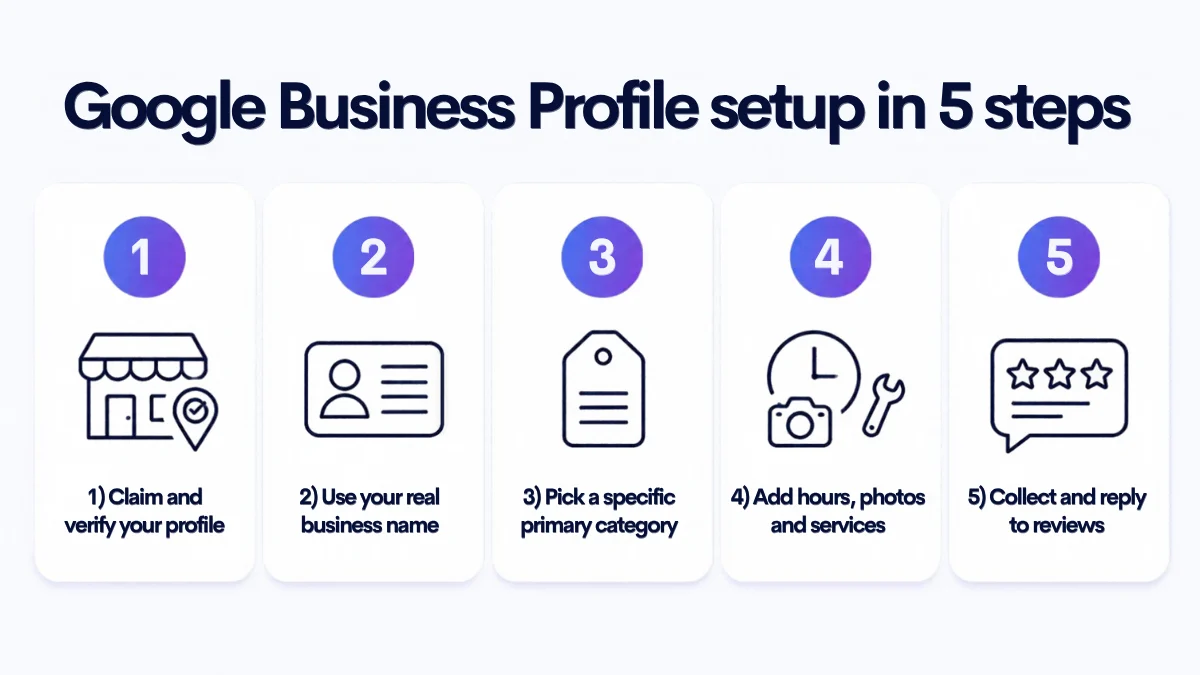
How to set up Google Business Profile: step by step
1. Create or claim your profile
Sign in to a Google Account (Google suggests using your business email domain if you’re creating a new one), then go to the Business Profile create page and type your business name. Google’s setup guide walks you through category, location, service area, phone and website.
If your business already shows on Maps, you’ll be asked to claim it rather than create a new one. If someone else has already verified it, such as a former employee or agency, you can request ownership. According to Google, the current owner has 3 days to respond, after which you may be able to claim it.
Note that profiles are for businesses with in-person customer contact. Online-only businesses aren’t eligible.
2. Verify your business
Google states that customers can only find your profile after you complete verification. The available methods can include phone or text, email, a live video call, a video recording or a postcard. Google chooses which ones you’re offered, and you can’t change that.
A few practical rules from Google’s help page:
- Postcard codes usually arrive within 14 days and expire after 30 days.
- While you wait, don’t change your name, address or category, and don’t request a new code.
- Reviews of verification can take up to 5 business days.
- Never share your code. Google says it will never ask you for it.
3. Use your real business name, nothing more
This is where many small businesses go wrong. Google’s guidelines for representing your business say your name should reflect your real-world name, the one on your signage and stationery.
Taglines, phone numbers, URLs, opening hours and location details aren’t allowed. So if a hypothetical restaurant is called “Lagoon Grill”, that’s the name. “Lagoon Grill Best Seafood Restaurant Grand Baie Mauritius” is keyword stuffing, and it puts your profile at risk.
4. Choose your primary and secondary categories
Your primary category should be the most specific option that describes what your business is. Google’s own example: choose “Nail salon” rather than “Salon”. Google also confirms that the categories you select affect your local ranking.
Additional categories are for real departments. A Rose-Hill beauty salon might choose “Beauty salon” as primary and add “Nail salon” if it genuinely runs one. Don’t add a category for every product.
5. Set your address or service area
If customers visit you, add your exact address. P.O. boxes and virtual offices aren’t eligible.
If you travel to customers, like a mobile hairdresser, hide your address and set a service area instead. You can add up to 20 areas by city or postal code, and Google suggests staying within about 2 hours’ drive of your base. Hybrid businesses can show both.
6. Add accurate hours
Enter your regular customer-facing hours, then use special hours for public holidays. In Mauritius, that saves a lot of customers from turning up to a closed door.
7. Write your description and attributes
Your business description can be up to 750 characters. Google asks you to leave out URLs and HTML and to focus on the business itself, not promotions or prices.
Then add attributes such as Wi-Fi or outdoor seating. Google notes that some attributes may help you appear in searches for places that have them.
Google Business Profile optimisation: making your profile work
1. Add real photos and videos
Google recommends a logo, a cover photo and business photos, including an exterior shot so people recognise you on arrival. Its photo and video guidelines ask for JPG or PNG files between 10 KB and 5 MB, ideally 720 px by 720 px, and videos up to 30 seconds long and 75 MB.
Keep them real. Google advises against heavy filters. Show the actual sunset terrace, the actual stylist at work, the actual plate.
2. List your products and services
Use Edit services to pick from Google’s suggestions or add custom services with a short description. A Rose-Hill salon could list “Keratin treatment”, “Bridal makeup” and “Gel manicure”. Keep custom service names free of phone numbers and prices.
3. Publish posts and updates
Posts come in three types: updates, offers and events. A restaurant can post a live music night or a weekend special. Google archives posts older than 6 months unless you set a date range, so a stale profile looks exactly that: stale.
My advice: plan one post a week. It keeps your profile visibly alive.
4. Collect reviews the right way
Google’s review tips suggest sharing a link or QR code with customers. Put the QR code on the bill folder, the salon mirror or your WhatsApp follow-up message.
What you can’t do matters just as much. Google’s contribution policy prohibits offering discounts or free services for reviews, asking only happy customers (review gating), and reviews from staff or family because of conflict of interest.
5. Reply to every review
Google advises short, specific replies that use the reviewer’s name, sent promptly. For negative reviews, acknowledge genuine mistakes, avoid personal attacks, and move complex issues to phone or email.
6. Check how customers can message you
The old built-in chat feature is gone. Google confirms that chat ended on 31 July 2024. For eligible accounts, customers can now contact you from your profile through text messages or WhatsApp. If that option shows in your dashboard, turn it on, then make sure someone actually answers.
7. Use performance insights
Your Performance page shows views, the search terms people used to find you, direction requests, calls, website clicks, messages and bookings. Check it monthly.
If people search “nail salon Rose-Hill” but you never mention nails, you’ve found a gap. To connect those clicks to real sales on your website, you’ll want proper tracking and first-party data in place.
Common Google Business Profile mistakes to avoid
- Breaking the guidelines and getting suspended. Google says it may suspend profiles that don’t follow its guidelines. If it happens, don’t create a new profile. Fix the issue, gather evidence such as business registration and utility bills, and appeal once, carefully.
- Duplicate listings. Google allows only one profile per business. If you move premises, update your existing address rather than creating a new profile, and don’t create separate profiles for each service.
- Fake or incentivised reviews. Google removes them, and they damage trust with real customers who can often spot them.
- Inconsistent name, address and phone. Keep them identical on your website, Facebook page and Google profile.
Google Business Profile for small business: optimisation checklist
- Profile claimed and verified
- Real-world business name, no extra keywords
- Specific primary category, a few relevant secondary ones
- Correct address or service area
- Regular and public holiday hours up to date
- Description written, attributes ticked
- Logo, cover, exterior and interior photos added
- Products or services listed
- One post a week
- Review QR code in use, every review answered
- Name, address and phone identical across the web
- Performance insights checked monthly
Frequently asked questions
Is a Google Business Profile for small business owners free?
Yes. Creating and managing a profile is free, and Google states that you can’t pay for a better local ranking.
How long does Google Business Profile verification take?
It depends on the method Google offers you. According to Google, verification reviews can take up to 5 business days, and postcard codes usually arrive within 14 days.
Can I add keywords to my business name on Google?
No. Google’s guidelines say your name should match your real-world business name. Adding taglines, locations or service keywords isn’t permitted and can lead to suspension.
Can I run a profile if I don’t have a shop?
Yes, if you serve customers in person. Service-area businesses hide their address and list up to 20 service areas instead. Online-only businesses aren’t eligible.
Can I offer a discount in exchange for a Google review?
No. Google prohibits incentives such as discounts, free products or payments in exchange for reviews. You can, and should, ask every genuine customer for honest feedback.
The bottom line
A Google Business Profile for small business owners is the closest thing to a free shop window on the busiest street in town.
Set it up honestly, keep it complete, and show up every week with photos, posts and replies. The businesses that win local search in Mauritius won’t be the biggest. They’ll be the most consistent.
Want more customers from local search?
I help businesses in Mauritius and beyond get found locally, from Google Business Profile and local SEO to ads and tracking that show what’s really driving calls and visits. Tell me about your project and let’s make your business the one people choose.
Sources
- Google: Tips to improve your local ranking
- Google: About Business Profile eligibility
- Google: Add or claim your Business Profile
- Google: Verify your business
- Google: Guidelines for representing your business
- Google: Manage your business category
- Google: Manage your service area
- Google: Edit your Business Profile
- Google: Business attributes
- Google: Photo and video guidelines
- Google: Edit services
- Google: Posts on your Business Profile
- Google: Tips to get and reply to reviews
- Google Maps: Prohibited and restricted content
- Google: Chat and call history discontinued
- Google: Business Profile performance
- Google: Resolve duplicate profiles and ownership issues
- Google: Suspended or disabled Business Profiles